

Often in companies with many employees, it is desirable to have a standard set of User Settings for each person in a department. Spire can manage pre-set template Roles associated with user settings so that new users can be defined with particular settings as soon as created without having to individually edit, and you can see which roles have been assigned to various users. This provides consistency of access and ease to assigning rights to new users.
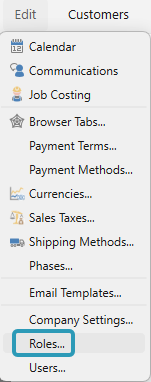
Creating and maintaining Roles can be found from the Edit menu. This opens a list of existing Roles defined in the company.
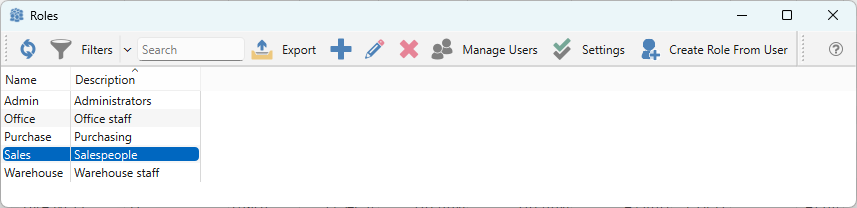
Role records simply contain a unique Name and a Description to specify the purpose of the Role. You may also use the same Toolbar button functions when editing a Role that are available when a single Role is highlighted on the list.
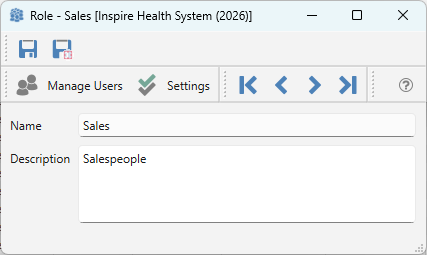
Manage Users – When you want to add a user to the role, or remove a user. Either click the Plus button or the bottom cell in the Username column, and type in the user name code to include. Or highlight a user and the Delete toolbar button to remove them from this Role.
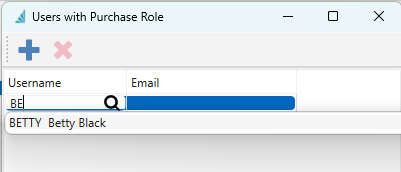
When a user is added to a role, all Settings assigned to the role get pushed to the User Settings. This is a very convenient way to assign settings to a new user.
Note that Users can belong to multiple roles. If a setting is enabled in any assigned role but disabled in another assigned role, then that user will have access to that function because it is available to them from at least one assigned role.
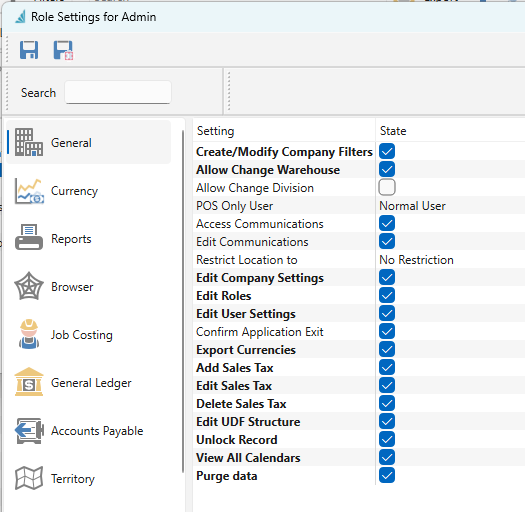
Settings – Most User Settings are available here to define as Role Settings. Some settings that are not True/False checkboxes such as the Default Warehouse are not definable in Roles, because these cannot be determined for users that belong to multiple Roles. If you edit Settings after the role has been created, those settings will be displayed in Bold font to indicate this.
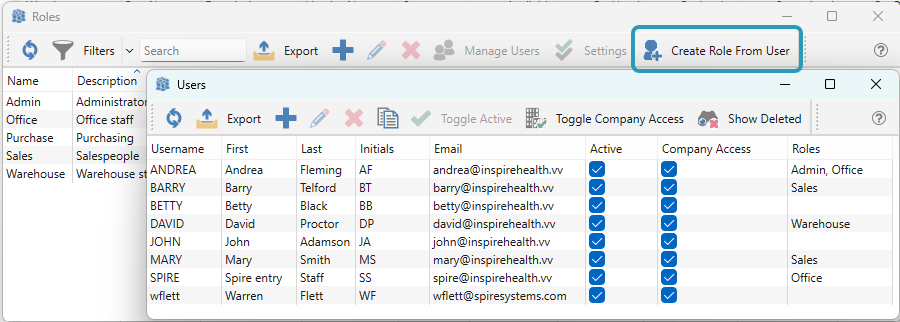
Create Role From User – When you first set up Roles, you can choose to create the role and associated User Settings from an existing user. This saves you time in determining what the appropriate Settings for the role should be, and ensure that you have not made a mistake in what those settings should be. When you click this button, you first need to select the user for which the role settings will be created from, and then you can create the role record to apply the settings.
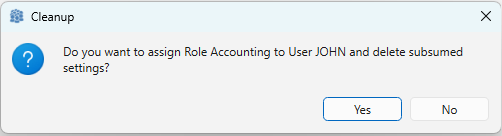
Because Role and User Settings don’t have to be identical, you can optionally remove the user subsumed record at the end of these procedure to ensure that the Role and selected user are in synch.
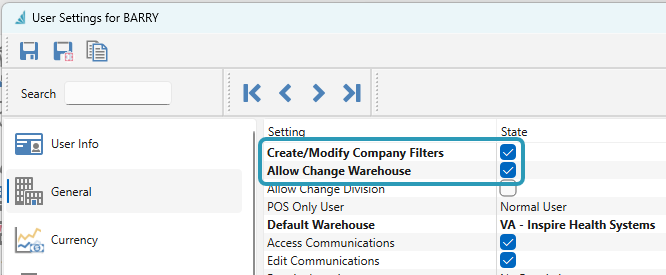
User Settings can still be edited for users with an assigned role, in order to grant a specific user different rights than what is part of the role. These settings have the label in bold font to indicate the edited status.
Information about various User Settings and their functionality can be found in the respective manual topic within the User Settings chapter.
Video Instruction